It hasn't been long since Yahoo! revamped the layout of their mail to give it a new look which is a deviation from the classic blocky design, you can of course switch between whichever you're more comfortable with. But lately, Yahoo! has taken another step to further enrich their user experience by providing applications inside Yahoo!Mail so you don't need to leave your mailbox to do other tasks.


I was somewhat surprised when I checked my email account to see that there were new additons to my mailbox.
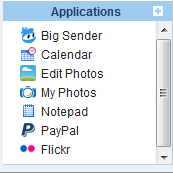
Just below my folders frame is a new frame containing icons for applications.

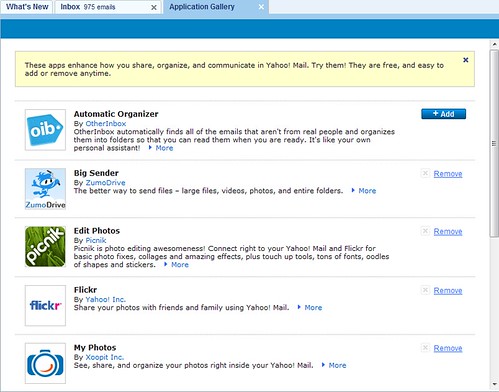
You can also open the Applications Gallery to bring up the tab for selecting the applications you wish to add to your disposal ;)

MyPhotos (by xoopit)
is an application developed by Xoopit, a company that deals with mail applications, indexing and content discovery. My Photos allows you to browse all the picture in your inbox and makes it easy for you to share them through email.
picnik
in a nutshell is an online photo editing tool which allows you to make easy adjustments such as cropping, touch-up, or for adding effects. Like My Photos, Picnik digs deep into the contents of your mails and gives you the option to adjust any pictures you fancy and send it to your email recipients. I'm expecting the former to be faster but none is proven yet, if not, then you know you won't need it ^^.
flickr
links your flickr account to your ymail allowing you to browse your photostream, sets, groups and attach them to your emails. Although trivial, it should be noted that unlike the other apps, this one just opens a floating window inside your mailbox instead of opening a new tab for you to navigate.
PayPal
allows you to easily send/request payments using your PayPal account (which is usually linked to your email address). It might be unfair for me to pass judgment since I haven't tried using it yet, but I think at most it can only automate filling in your email address for you or provide a lookup of your addressbook. Not really one of those apps that has much bearing if you don't add it to your application list.
ZumoDrive
claims that their service is actually cold storage which can be used for sharing large files such as videos for people you grant permission to access. For the link with the ymail, I would imagine that it just gives you the option to "invite" those people you wish to authorize in accessing your file.
As these are some very useful tools, they do require you to authorize them to automatically sign you in or grant them permission to access the data in your mailbox. You need to be aware of the risks of allowing third party applications in accessing the contents of your mailbox so better make sure you understand everything before you click that "Accept" button.
You can find more information here in Yahoo!Mail's official blog site. If you don't have this features yet, don't worry and be patient, they rolled this out in US first and will eventually find it's way to your mailbox.
So, which app did you find most useful?
Read more...





I was somewhat surprised when I checked my email account to see that there were new additons to my mailbox.
Just below my folders frame is a new frame containing icons for applications.
You can also open the Applications Gallery to bring up the tab for selecting the applications you wish to add to your disposal ;)
MyPhotos (by xoopit)
is an application developed by Xoopit, a company that deals with mail applications, indexing and content discovery. My Photos allows you to browse all the picture in your inbox and makes it easy for you to share them through email.
picnik
in a nutshell is an online photo editing tool which allows you to make easy adjustments such as cropping, touch-up, or for adding effects. Like My Photos, Picnik digs deep into the contents of your mails and gives you the option to adjust any pictures you fancy and send it to your email recipients. I'm expecting the former to be faster but none is proven yet, if not, then you know you won't need it ^^.
flickr
links your flickr account to your ymail allowing you to browse your photostream, sets, groups and attach them to your emails. Although trivial, it should be noted that unlike the other apps, this one just opens a floating window inside your mailbox instead of opening a new tab for you to navigate.
PayPal
allows you to easily send/request payments using your PayPal account (which is usually linked to your email address). It might be unfair for me to pass judgment since I haven't tried using it yet, but I think at most it can only automate filling in your email address for you or provide a lookup of your addressbook. Not really one of those apps that has much bearing if you don't add it to your application list.
ZumoDrive
claims that their service is actually cold storage which can be used for sharing large files such as videos for people you grant permission to access. For the link with the ymail, I would imagine that it just gives you the option to "invite" those people you wish to authorize in accessing your file.
As these are some very useful tools, they do require you to authorize them to automatically sign you in or grant them permission to access the data in your mailbox. You need to be aware of the risks of allowing third party applications in accessing the contents of your mailbox so better make sure you understand everything before you click that "Accept" button.
You can find more information here in Yahoo!Mail's official blog site. If you don't have this features yet, don't worry and be patient, they rolled this out in US first and will eventually find it's way to your mailbox.
So, which app did you find most useful?


